
Tiny Desk CapCut Template vs AI Apps
Compare what a Tiny Desk CapCut template can edit with AI video apps that recast a band or build a new scene, then see the five-photo concert workflow.
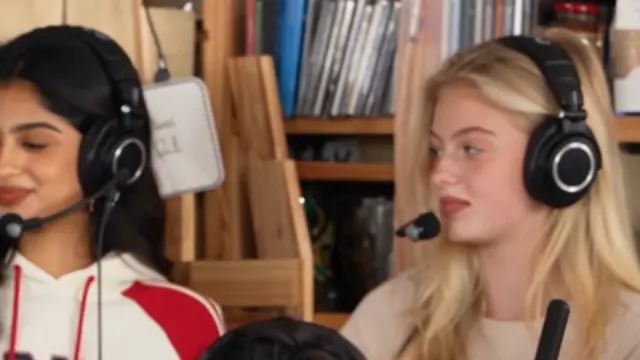
The short answer: Search for Tiny Desk in CapCut, choose a template, and replace the photos or videos it requests. AI character templates use photos to recast a performance. General AI video apps let you plan the room and shots yourself. For this concert, look at how the group shot, singer close-up and saxophone solo fit together before choosing your route.
For the performance and the trend behind it, see the Tiny Desk AI video explainer.
What a Tiny Desk CapCut template can change
A template supplies the shot order, timing and effects, while you add your media. Editing templates replace photos or video clips; AI character templates generate performances from character photos. The preview shows which kind of result the template is designed to make.
The familiar Tiny Desk edit moves from a group at the desk to a singer close-up and a saxophone solo. To cast friends in those parts, choose a template with the performance and roles you want. After you choose to use it, CapCut shows how many media items to replace and what each slot accepts.
How to find a CapCut template
- Open Template in CapCut and search for Tiny Desk or Tiny Desk concert.
- Find a template in the search results and watch how its group shot, close-up and solo follow each other.
- Open it and choose to use the template. X clip to be replaced tells you how many media items to add.
- Select photos or videos as each slot requests. For character templates, match the photos to the roles. AI templates show the credit cost on Use AI template.
- After replacement or generation, preview the role order, framing and sound, then save the video.
Some TikTok videos also display CapCut · Try this template. Tap it, then Use template in CapCut to open that template. For an AI template, tap Use AI template, choose the character photos and tap Next to continue.
How AI video apps arrange the band
To follow an existing performance, use the concert clip as the movement and camera reference, then add character photos. Write down the cast first: keyboard player, backing singers, close-up performer and saxophone player. If the tool offers role assignments, match the images to that list.
For a new scene, choose the room, band positions and shot order before writing the actions. You can make the opening group, singer close-up and saxophone solo as three separate shots. Reuse the character references, clothing and setting in each, then join the clips to the performance’s rhythm.
Check the generation panel for the reference inputs, duration and frame shape you need. Generating a full sequence and assembling individual shots call for different preparations, so choose your approach before uploading.
Two examples of AI routes
These tools take different reference inputs. Choose according to the material you already have:
- Higgsfield Genjutsu transforms an existing video using image references, with motion-transfer and object-swap options. Start with the performance clip you want to follow and add the character images.
- Runway Act-Two uses a driving performance video plus a character image or video. Its multi-character workflow processes performers separately, then composites the results into one frame. For a band, plan each performer’s part by shot.
Choose by the footage and result you have in mind
- You already have a finished concert clip. Use a normal editor or a CapCut template to trim it, add captions and set the layout. Generating the performance again may add work without changing what matters.
- You want the same camera moves and cuts with another cast. Look for a video-transformation workflow and confirm how it assigns references to multiple people. A single-character performance feature may not cover a band.
- You want a new venue, song or arrangement. Start with an image-to-video or text-to-video route that exposes scene and performance controls. Expect to review and edit the separate shots.
- You only have a group photo. Check if the chosen app accepts a group image and whether it can distinguish the people. Some workflows expect separate character references.
- You only want to see what others made. Search “Outstanding Tiny Desk AI” on TikTok and compare the casts; no edit or generation is needed.
Make a Tiny Desk band video from five photos
The template here assigns the concert’s roles before you generate. Perform this rap places five photos into the supplied performance: one seated keyboard performer, two people in the back row, a close-up performer, and the sax player. The first three photos appear in the opening group shot; the fourth takes the close-up, and the fifth takes the solo. Check the labels before you upload because each photo has a different part.
Create your rap starts a new performance in the same desk-side scene and uses the first three roles: the seated performer and two people behind them. You set a topic, mood and language, then review the settings and quote. It generates new vocals; it does not take an uploaded song or video.
- Open the template and watch the preview to see the order of the shots.
- Choose Perform this rap for the supplied performance or Create your rap for a new rap.
- Add five clear, separate photos for the performance, or three for the new scene.
- Review the displayed quote and settings before you generate.
- Preview the MP4, check each person’s role and sound, then download it.
For the 14-second performance at 720p, the quote is 1,400 credits. For Create your rap with the lowest-cost first-frame model, 10 seconds at 720p starts at 160 credits; the credit-pack page lists the packs. In Perform this rap, tick No song if the file should be silent: it removes all sound without changing the price.
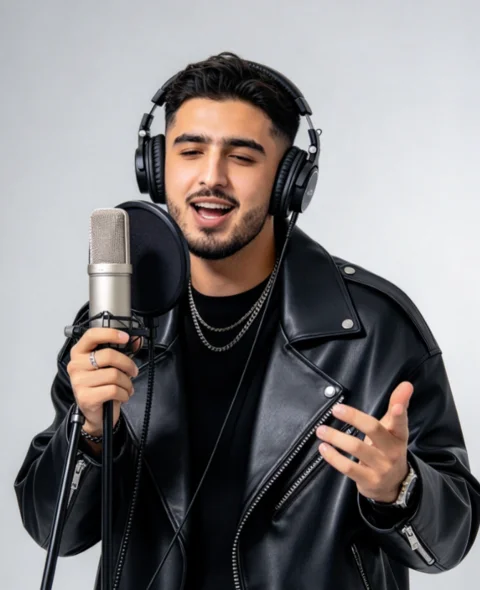

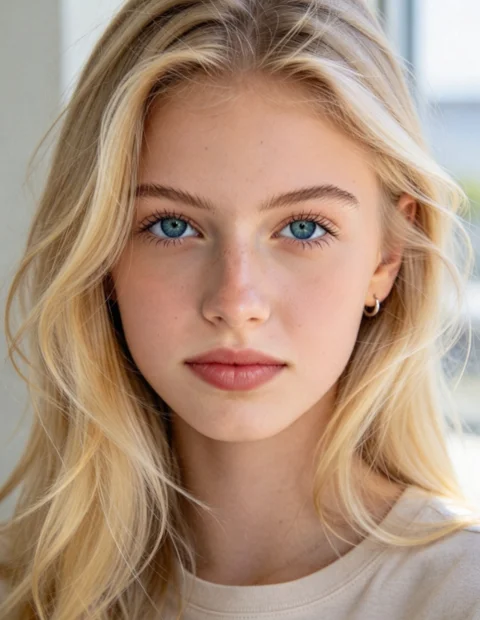
Template example photos for the first three roles in the opening group shot. The template labels the later close-up and saxophone roles separately.
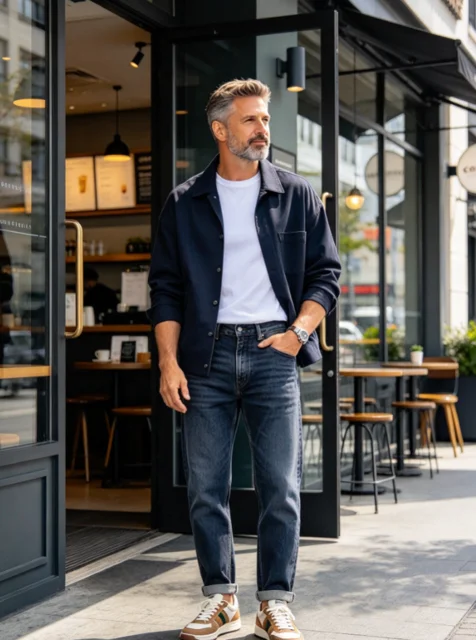
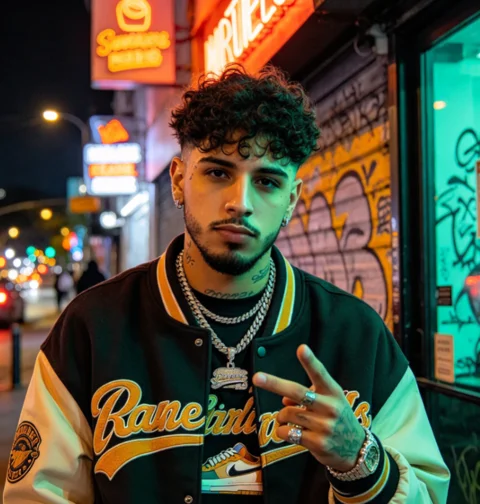
The remaining two template example photos identify the close-up performer and the saxophone player. They have different roles from the opening trio.
Sources
CapCut Help Center: “How to Use Templates” and “Why Are Templates Not Appearing in CapCut?”; Higgsfield Help Center: “How do I use Higgsfield Genjutsu?”; Runway Help Center: “Performance Capture with Act-Two” and “Creating Multi-Character Dialogues with Act-Two.”
Put your cast in a Tiny Desk concert
Choose the five-photo performance or make a new rap from three photos.