
BigXthaPlug Give It All: AI Video Tutorial
See how to make a BigXthaPlug Give It All AI video with a CapCut template, a general AI tool, or one photo and the reference performance in Rap AI Video.
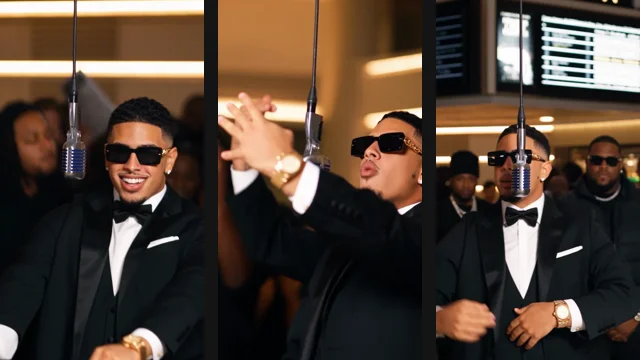
The short answer: The BigXthaPlug Give It All video places a new performer in a cinema-lobby rap performance, with a hanging microphone, an audience and several camera angles. In CapCut, search for a matching template or open one from a TikTok post that carries a template link. A general AI video tool needs the performance clip and one character photo. The template here lets you follow the reference performance or create a new rap in the same cinema setting, using one photo for the lead.
What is the BigXthaPlug Give It All video?
The performance is titled GIVE IT ALL | From The Block Performance and was published by 4 Shooters Only. Its setting does much of the visual work: a singer performs under a suspended microphone in a cinema lobby, with people behind him and theater details around the room. The edit moves between a frontal view, a side angle and a wider shot.
Searches may also use the phrase Give It All to Me. Here, “Give It All” refers to this performance format: replace its lead performer while keeping the rap-stage setup and shot changes.
The selected 13-second section has four clear beats. The singer gestures in front view first, turns to a side angle for a brief reach and clap, returns to a more frontal view, then appears in a wider shot at the end. That sequence gives an AI tool a useful target beyond “make this person rap.”
What to prepare for a Give It All AI video
For the template here, prepare one photo of the person you want in the foreground. The reference video supplies the cinema-lobby setting, hanging microphone, audience and camera changes; the photo supplies the replacement person and their clothing. You do not need a separate photo of the audience or theater.
A single-person photo makes it clear who should take the lead role. The sample below uses a man in a black tuxedo, bow tie and sunglasses. The generated video keeps him as the lead across the cuts. Its lighting shifts warmer and more golden than the reference, while the suspended microphone and audience remain visible.
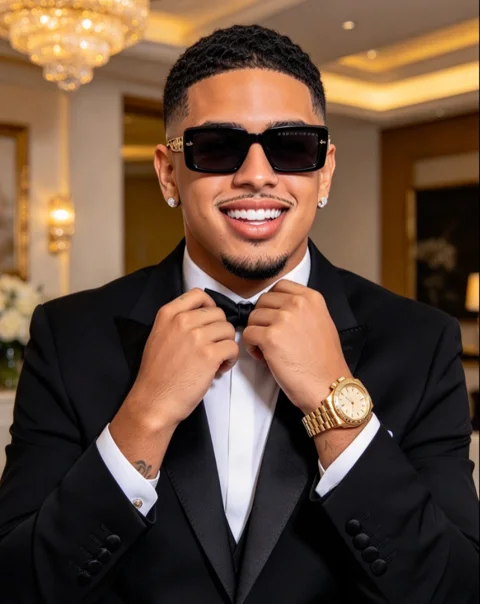
One photo supplies the foreground performer’s appearance and outfit.
Method 1: find a CapCut template
CapCut has two ways to get to an AI template. A link under a TikTok video is available only on posts that carry one; the search route starts from CapCut’s Template section. Either way, preview the result and check its material prompts before using it.
Open a template from TikTok
If a video has CapCut · Try this template beneath it, tap the label and then Use template in CapCut. In CapCut, tap Use AI template, choose the requested character photo, and tap Next to continue. The Use AI template button shows the credit cost for that template.
Not every Give It All video has this link. Use this route only when the label appears under the video you chose.
Search in CapCut
- Open Template in CapCut and search BigXthaPlug Give It All. If that does not surface the performance you want, try Give It All to Me.
- Choose a result whose preview matches the cinema-lobby performance, then tap to use it.
- Once you use the template, check how many media items CapCut asks you to replace. Prepare that number and follow the prompt for each item.
- For an AI character template, choose the person photo or photos it requests. Check the credit cost on Use AI template before continuing.
The replacement count tells you how many items to prepare. It does not automatically tell you how many people will appear in the finished video; the template’s prompts and preview show what each item is for.
Method 2: use a general AI video tool
Choose a tool that accepts both a character image and a reference video. Set the performance as the visual reference. For this clip, the video provides the cinema lobby, hanging microphone, background audience and camera changes. The photo provides the new performer. If the tool has separate controls for character and motion references, assign each file to the matching control.
Treat the time ranges below as approximate action marks. Keep the reference scene instructions in place as the camera moves from the front to the side and back.
Use the clip’s action sequence to guide the prompt:
| Time | View and action |
|---|---|
| About 0–6.3 seconds | Front view. Swing the arms, cross them in front of the chest, then raise the hands. |
| About 6.3–8.3 seconds | Side view. Reach outward and clap. |
| About 8.3–12 seconds | Return to a more frontal view for the next set of hand gestures. |
| About 12–13 seconds | Open to a wider view as the clip ends. |
Upload the files, replace the attachment labels below with the names shown by your tool, and paste the prompt into the generation request:
Person: use @photo1 as the foreground performer. Keep the person’s appearance and clothing consistent across every cut.
Reference video: use @video for the cinema-lobby scene, hanging microphone, background audience, performance and camera changes.
Frame: vertical 9:16. Keep one lead performer in the foreground and the audience behind them.

About 0–6.3 seconds: use a frontal view. Swing the arms, cross them in front of the chest, then raise the hands.
About 6.3–8.3 seconds: cut to a side view. Reach outward and clap.
About 8.3–12 seconds: return to a more frontal view and continue with hand gestures.
About 12–13 seconds: open to a wider view for the ending.

Keep the cinema-lobby setting and shot order from @video. Use @photo1 for the lead performer’s appearance and clothing.
If your tool can handle the full 13 seconds, use the prompt as one request. If it has a shorter clip limit, split at the action changes and repeat the performer, scene and framing instructions in each prompt. Put the segments in order in an editor and trim repeated movement at the joins.
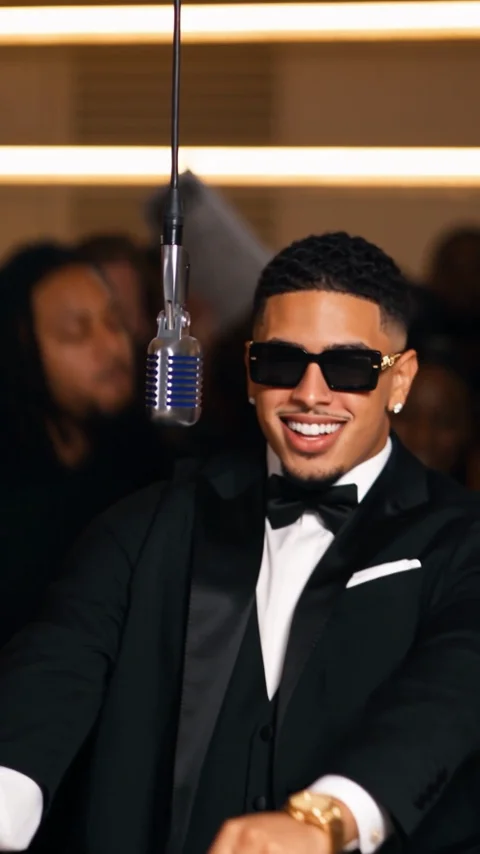
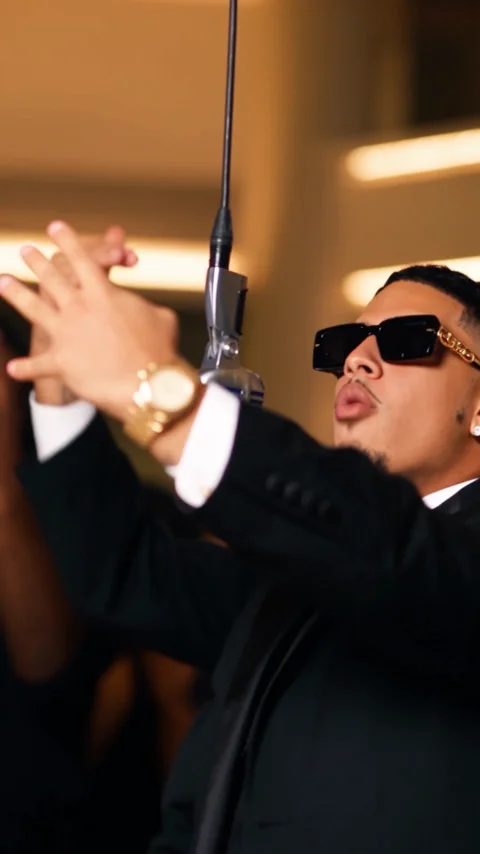
Two camera angles from the generated example: the lead remains in the same performance setting.
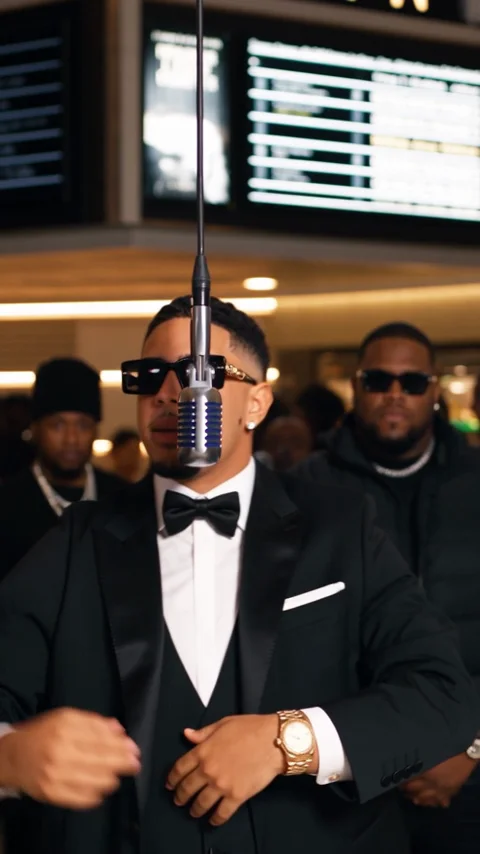
Another generated frame with the hanging microphone and people in the background.
Method 3: make it with the template here
The BigXthaPlug Give It All template offers two ways to put your character in the cinema performance.
- Open the template page and upload one photo for the foreground performer.
- Choose Perform this rap to follow the reference, or Create your rap for a new performance. For a new rap, describe your theme and choose a mood.
- Check the quote. The reference performance is 13 seconds: 650 credits at 480p, 1,300 at 720p or 3,250 at 1080p. Create your rap defaults to 10 seconds at 720p with Seedance 2.5, costing 500 credits; its quote changes with the model, duration and resolution.
- Generate the video, then preview and download it.
In Perform this rap, No song removes all sound without changing the quote. Create your rap generates a new vocal performance in the cinema setting. The sample above shows the reference-performance mode with one photo and the 13-second clip.
Which route should you use?
| Route | Inputs and steps | Cost | Best fit |
|---|---|---|---|
| CapCut | Choose a preview, then replace the media the template requests. | Each AI template shows its credit cost on Use AI template. | You find a result that matches the performance. |
| General AI tool | Add one character photo and a reference video; write the scene and action prompt. | Depends on the tool and settings you choose. | You want to direct the result and can use both files. |
| Template here | Upload one photo; follow the reference or set a theme for a new rap. | Reference: 650 credits at 480p. New rap: 500 with the default settings. | You want the cinema setting and a quote before generating. |
If a CapCut result matches your target, that may be all you need. A general AI tool gives you more room to direct a version, but you need to prepare its image and video references. The template here needs one photo from you; the cinema setting is already prepared, and each mode shows a quote before generation.
If the result looks different
Start with the setting that determines the part you want to change:
- You wanted a new rap but got the reference performance. Choose Create your rap and enter your theme. Perform this rap follows the fixed clip.
- The wrong person takes the lead. Use one photo with a single, clearly visible subject. The page replaces the foreground performer; it does not ask you to provide the background audience.
- The scene feels less like the reference. In a general tool, keep the cinema lobby, suspended microphone and shot order in the prompt. Avoid adding a competing location description. For this template, the reference video is already selected; upload the person photo and generate.
- The movement changes between cuts. Repeat the same person and outfit instructions in every segment if you split the prompt. Keep the clips in reference order when you assemble them.
FAQ
Does every CapCut result make a new AI performance?
No. Template search can include regular edits as well as AI character templates. Check the result’s preview and flow; the AI route uses the Use AI template step to select character photos.
How can I use my own song or recording?
Download the MP4, open it in a video editor, and add your song or recording as an audio track. In Perform this rap, you can select No song before generation. For a Create your rap video, mute its generated audio in the editor before adding your track.
Sources
4 Shooters Only: GIVE IT ALL | From The Block Performance.
Make a BigXthaPlug Give It All video
Add one photo to follow Give It All or create a new rap in the cinema setting.