
How to Make a Pimp Walk Entrance AI Video
Make a 15-second Pimp Walk Entrance AI video from two photos. Compare CapCut, a video model, and a template for the doorway walk and red-card finish.
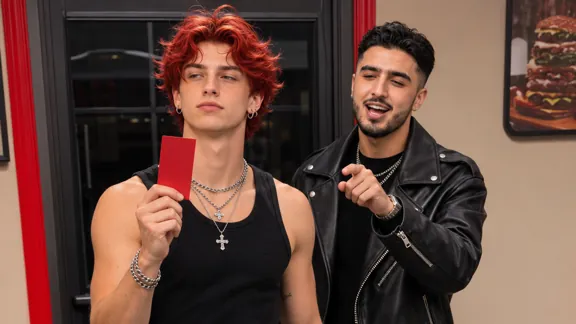
The short answer: Pimp Walk Entrance is the shop-door clip where one friend holds the door and the other takes a very low, deliberate walk toward the camera. Look for the full entrance when you browse CapCut. A short cut may start after the walker is already inside. The template here uses two photos and follows the 15-second version through the red-card finish.
The easy mistakes are swapping the two photos and bringing the card up too soon. Put the walker first. If you direct the action yourself, keep the card low until they stand.
What is the Hold the Door trend?
In the October 17, 2026 TikTok from @mrdanielkimchi, a person beside a shop door makes room for someone in a shiny suit. The walker crosses the threshold and almost squats before standing up near the camera. @mrmiltonfrost posted a night-shop take on October 25 with a green-jacketed walker and a white-haired friend beside the door. The friend stays back while the walker closes the distance. The small red card marks the ending.
You may also find the clip under Pimpwalk Entrance or pimpwalk into barbershop. Look for the open glass door and the walk across the mat. Those details distinguish it from other clips with the same style of walk.
What to prepare
- Photo 1 is the walker. Choose a clear, head-to-toe photo so the outfit and shoes are visible when the person bends their knees. Keep props out of the way of the hands.
- Photo 2 is the door holder. Choose a separate photo with the face and upper body in view. The friend stays beside the door while the lead moves forward.
- Use photos of adults who gave their permission. For a general video tool, prepare an authorized motion reference or make your own opening scene.
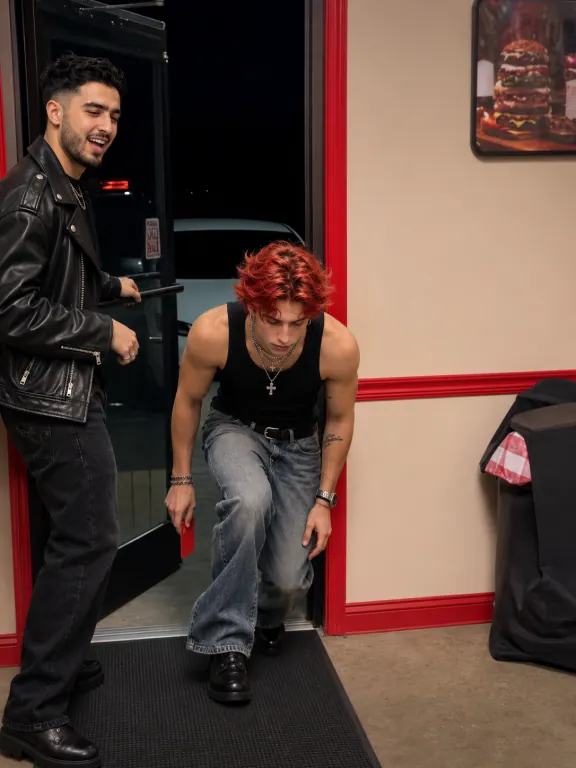
AI role illustration. Photo 1 is the red-haired walker. Photo 2 is the friend holding the door in a leather jacket.
Method 1 — Look for a CapCut template
- Check a matching TikTok post for CapCut · Try this template. When it appears, tap it and choose Use template in CapCut.
- You can also open Template in CapCut and search Pimp Walk Entrance or pimpwalk into barbershop. Preview the first and last seconds. Look for the threshold crossing at the start and the red-card finish at the end.
- Open the template and check what each slot takes. Two people in the preview can be part of one clip. If there is one video slot covering the whole doorway shot, prepare a clip with both people already in frame. When two photo slots are labelled for characters, match each photo to the corresponding role.
- If you see Use AI template, check the credits on that button. Choose the requested photos and continue with Next.
- Preview the entire edit before exporting. With a single video slot, check that the chosen excerpt starts before the lead crosses the threshold. If the cut stops while the walker is still crouching, look for another template or use the custom route below.
Method 2 — Direct the scene with a video model
In Dreamina, prepare an opening image with both people in a shop doorway, then open Image to Video and select Seedance 2.5. Keep a clear path from the threshold to the camera. Position the door holder beside the hinge, where they can hold the door without stepping into the walker's path.
| Approximate time | What happens in the shot |
|---|---|
| 0–3 seconds | The friend holds the door. The walker approaches from outside. |
| 3–6 seconds | The walker crosses the threshold and bends both knees. |
| 6–11 seconds | The walker takes the low steps across the mat. The friend stays behind. |
| 11–15 seconds | The walker straightens, flicks the red card once and settles into a pose. |
If your image tool accepts two character references, replace @photo1 and @photo2 with the names of your attachments. Use the opening-image prompt first, then give the resulting still and the motion prompt to the video tool.
Opening image: Put the adult from @photo1 just outside an open red-trimmed shop door. The adult from @photo2 stands inside at the hinge side and holds the door. Keep their own clothing. Frame both from head to toe with a phone-height camera inside the shop. Leave a clear black mat between the threshold and the camera. Put a small blank red card in the walker's hand.

Motion: Hold the framing. The friend stays by the open door while the walker approaches. The walker crosses the threshold, bends their knees and takes two or three slow, low steps across the mat. Show the shoes settling between steps. Near the camera, the walker rises and fans once at chest height with the card. End on a still pose with the friend visible behind them.
If your tool has a shorter clip limit, build the threshold and low walk as one clip. Use its last frame as the starting image for the rise and card gesture. Cut at the pause after the last foot lands.
Keep the height of the camera and the position of the door fixed when you join the clips. Compare the last image of the first clip with the first image of the second at the cut. The shoe on the mat should be in the same place, and the red card should stay in the same hand. Fix a jump there before adding any music.
Method 3 — Use the two-photo template here
- Open the Pimp Walk Entrance template. The motion reference link shows the timing and both roles.
- Upload the walker first and the friend holding the door second.
- Choose Follow this entrance for the 15-second walk, or Create your rap for a new performance on your own topic in the same shop setting.
- Check the quote. Follow this entrance uses 750 credits at 480p by default. In Create your rap, the quote depends on the model, duration and resolution you choose.
- Open Your videos when the render is ready. Check who crosses the mat and who stays at the door, then download the MP4.
This walkthrough shows the two upload slots, the 480p quote, and the MP4 download step.
Which method fits your clip?
| Method | What you supply | Cost to check | What can go wrong | When to choose it |
|---|---|---|---|---|
| CapCut | The photos or clip the edit asks for | For an AI template, see the credits on Use AI template. | A short edit cuts out the entry or card. | The preview shows the full walk you want. |
| Video model | An opening image and a movement prompt | Check the selected model’s quote for each render. | The walker’s appearance changes at the cut. | You want to direct the setting or timing. |
| Template here | Two photos, in role order | The 15-second follow mode defaults to 750 credits at 480p. | Reversed photos assign the wrong roles. | You want the ready-made sequence. |
Fix the entrance before you export
- The two people switch jobs. Put the walker in the first slot. For a custom prompt, name the roles again when describing the crossing and the finish.
- The low step is hard to see. Give the walker a full-body photo. If you control the camera, leave clear floor in front of the threshold.
- The card blocks the face. For a custom render, ask for one card flick at chest height after the person stands up.
FAQ
Can the two photos have different backgrounds?
Yes. The shop entrance supplies the setting in the template here. Each photo provides one of the people.
What if I put the photos in the wrong order?
Check the thumbnails before you generate. If both photos are already in place, remove them, then upload the walker first and the door holder second.
Will the MP4 have sound?
Follow this entrance includes sound by default. For a silent version, select No song before generating. The credit quote stays the same. You can add a track you have permission to use in an editor after downloading the MP4.
Sources
- TikTok, @mrdanielkimchi, October 17, 2026 doorway post.
- TikTok, @mrmiltonfrost, October 25, 2026 night-shop version.
- CapCut Dreamina, Pimpwalk Entrance AI Trend With a Hold-the-Door Reveal.
Make your Pimp Walk Entrance
Pick your walker and door holder, then check the quote before generating.