
How to Make an AI Rap Video from a Photo
Make an AI rap video with photos matching your template. Compare templates and free creation, check credits, and download the finished clip.
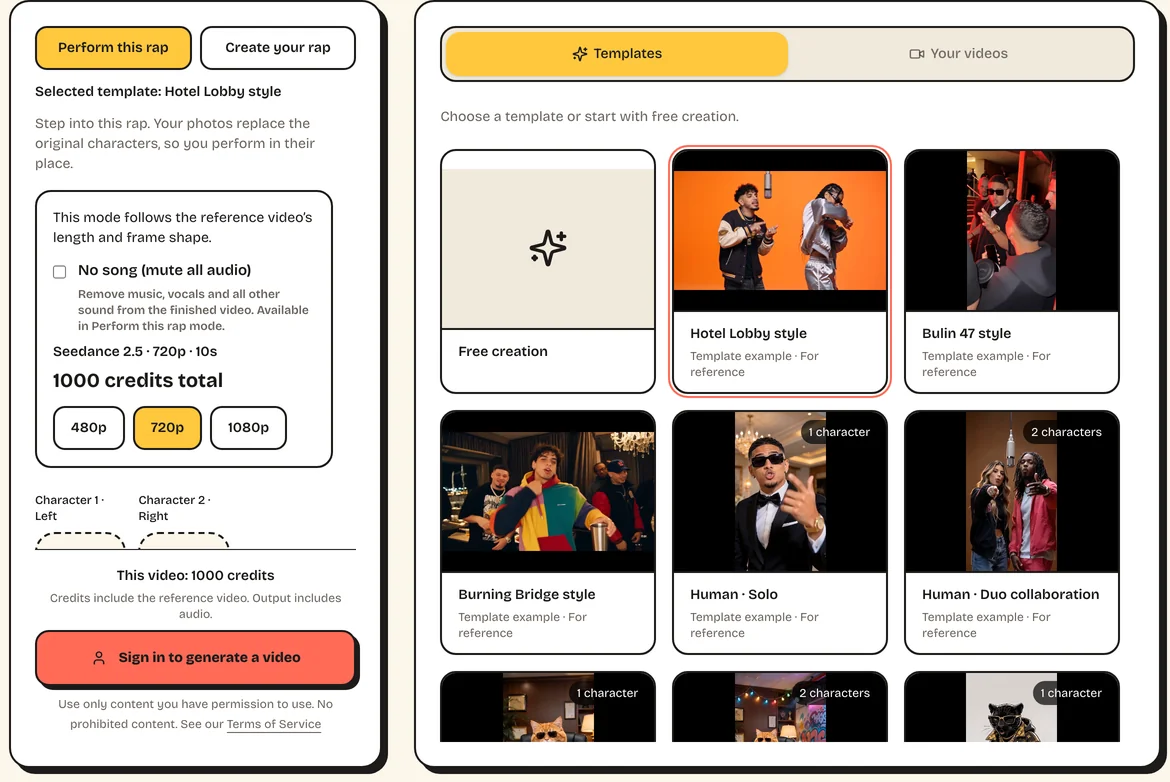
A photo is enough to start a short rap performance: no song to record first, no crew and no set. The current templates use one to five photos, depending on the scene. For a new performance, add a topic or a short line; then preview and download the finished clip.
You can start two ways: an existing template with a fixed scene and performance, or a new performance built from your own topic. Each asks for different photos and has a different price.
What an AI rap video from a photo can do
A template is the quickest way to start. In this guide, a trending template means a prebuilt scene with a fixed performance: the scene, camera, length and audio come from the template, and your photos replace the people. The card tells you how many photos it takes, how long the clip is and its frame shape.
Once you pick one, that setup is fixed. If you want a different subject, a different scene, or a different length, use free creation or a character template instead.
The result is a short clip, not a full music video. Publish it on its own, or use it as a first piece and add captions, cuts or other footage in your own editor.
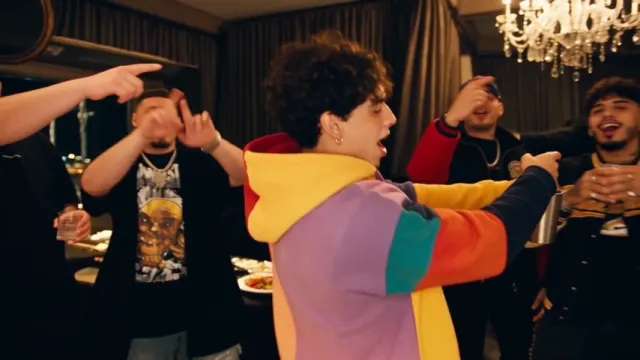
A frame from the Burning Bridge template preview.
Choose a trending template or free creation
Start with what you already have. If you have a photo of one person and want a quick solo performance, a one-photo template or a character template fits. If you have two photos and want both people in the same scene, a two-photo template fits. If a preset scene matters more than the person, a template is usually the closest starting point.
Choose free creation when you do not need a preset scene. In free creation you describe the performance, choose the mood and language, and let the model build a new clip. Character templates are the middle option: they keep a defined character setup but generate a new performance around your topic.
For a new performance with two people, use the duo rap generator. If your photo is of a pet, start with the pet rap video generator.
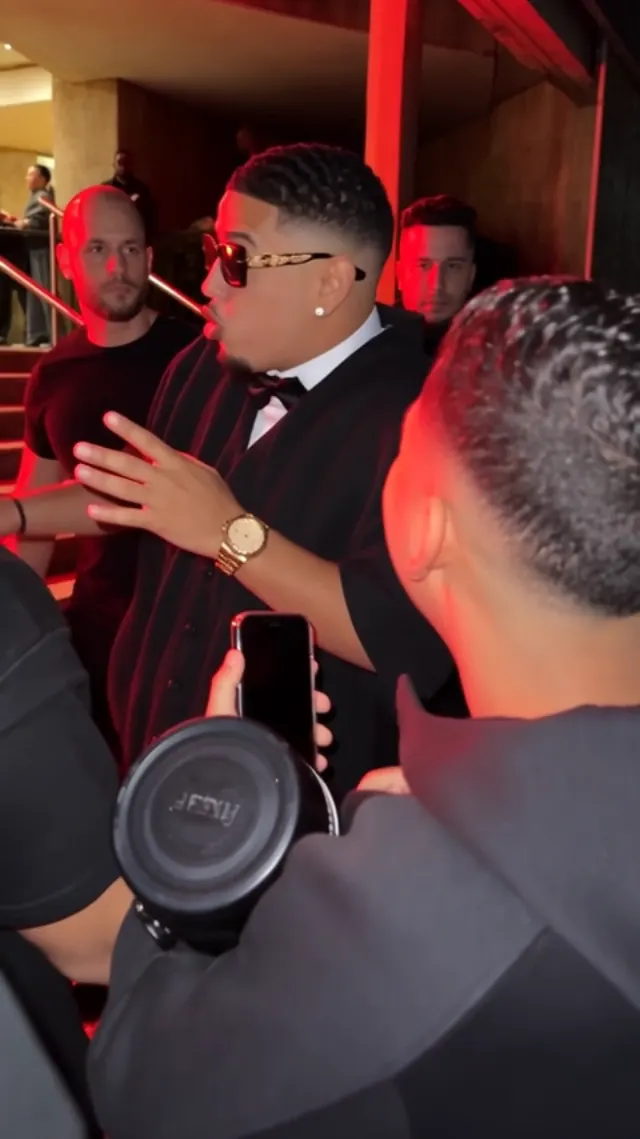
A vertical template example. The generator card shows its current photo count, length and quote.
Start from a template in the generator, or create a new performance. A clip you saw elsewhere can inspire the topic, but the scene comes from the template.
What photo to use
A clear, front-facing photo is easier to work with than one where the face is small or turned away. The face should be visible; sunglasses are fine if the rest of the face is clear. Avoid masks, heavy filters and photos where the person is mostly out of frame.
For a two-photo template, use two separate photos if that is easier. They do not need to be taken together. Match each photo to the role shown in the form: left, right, foreground, background, or a single centre role. The template card names the roles.
Use photos of yourself, friends who agreed to appear, or clients who gave permission; the rights also affect where you can publish the clip.
Step by step: from photo to finished clip
- Open the generator. Use the rap video generator on the home page. Sign in when you are ready to generate; you can look through the templates before that.
- Pick a template or free creation. If you want the template's scene, choose a trending template. If you want your own scene and topic, choose free creation.
- Add the photos. The form shows how many photos you need and the role for each one. Add a clear photo to each role and check it before moving on.
- Choose the mode and settings. In template mode, Perform this rap keeps the existing performance, and Create your rap writes a new one in the same scene. In free creation, set the topic, mood, language, model, length and resolution that the form offers.
- Check the quote. The generator shows the credit total before you submit. Resolution, model and length can change it. If the total is not what you expected, change the settings before generating.
- Generate and review. Open the finished clip in Your videos. Check the faces, the audio and the framing before you download.
- Download the MP4. Save the take you want to keep. If you need captions, cuts or extra music, do that in your own editor.
The generator on the homepage: choose a template or free creation, add the requested photos, and check the quote before you generate.
Two clips with the same photos can look different because one uses a fixed template performance and the other writes a new one.
Perform this rap or Create your rap
Perform this rap keeps the template performance. Your photos take the roles, the camera and timing stay, and the audio track is included by default. If you do not want any sound, tick No song; it removes music, vocals and other audio from the finished video. No song is only available in this mode; the price is the same as the version with audio.
Create your rap keeps the same scene but generates a new vocal performance from your topic. Use it when you want the orange studio, street corner or party setup without repeating the template's lines. The quote depends on the model, length and resolution you choose, so check the total in the form.
Neither mode gives you word-by-word control: the model may adjust wording to fit the performance, and lip-sync may not line up word for word. Write a clear topic, or a few lines, rather than a full page of lyrics.
What it costs
Price depends on the template's length and resolution. At 720p, a 10-second template currently costs 1,000 credits and a 20-second template costs 2,000. Lower resolutions cost less, and 1080p costs more. The card and quote show the exact total for the template you pick.
Creating your own performance starts lower because the length and model are yours to choose. At the default 10 seconds and 720p, the cheapest first-frame model starts at 160 credits. That is a starting point, not a fixed price: a longer clip, a pricier model or a higher resolution changes the quote.
Credits are sold in one-time packs, starting at $9.90 for 1,000 credits. There is no subscription. If a generation fails, you are not charged. A retry is a new generation and costs credits again. Check the quote and the current pack prices before you commit to a longer clip.
What can go wrong
When a result looks wrong, check the photo before rewriting the prompt.
- The face is too small or turned away. Use a closer, front-facing photo with the face clearly visible.
- The vocal may not match your lyrics word for word. The model may adjust the topic or lyrics you enter.
- The result does not look much like the people in the photos. AI generation is random, so the result may not match the photos exactly. Review it before sharing.
If a result does not look right, change one input at a time: a clearer photo, a different photo or a different resolution.
Make your AI rap video from a photo
Open the generator, pick a trending template, and check the quote before you upload.