
Christian Dior Dance AI Video Guide
Learn what the Christian Dior Dance AI video is, prepare one or two photos, and compare CapCut, general AI prompts, and this photo-based follow-along template.
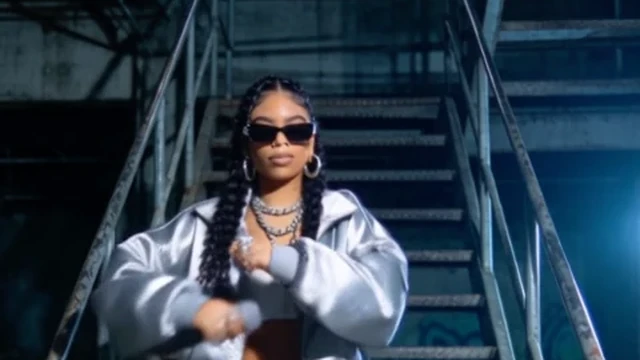
The short answer: The Christian Dior Dance sets small steps, knee lifts, and chest gestures to a section of “Dior” by MK featuring Chrystal. Open a CapCut template through the link on some TikTok videos, or search for its name in CapCut and replace the requested media. A general AI video tool needs your photo plus the dance clip; the template here takes one photo for Solo or two for Duo. Videos made here include audio, and No song removes all sound. Both versions use your photo’s setting. For Duo, put the photo with the background you want first.
What is the Christian Dior Dance?
Solo keeps one dancer facing the camera. Duo places two performers side by side, each raising their arms, stepping, and leaning with the beat. The two versions have different movement sequences, so choose a reference that matches your performer count.
MK and Chrystal’s “Dior” has a brisk house beat. The timing of the steps and arm movements is what makes the routine recognizable across different settings.
What to prepare
Use one clear photo of one person for Solo, or two separate photos for Duo. In Duo, the first photo places its person on the left and supplies the setting for both performers. The second photo supplies the person on the right. Choose the background you want before deciding which photo goes first.
Pick photos with a front-facing view and visible arms. Empty hands can make the gestures easier to see. Ask permission before using a friend’s photo.
The input photo below was taken in an industrial stairwell. The generated dance uses the stairs and lighting from that photo.
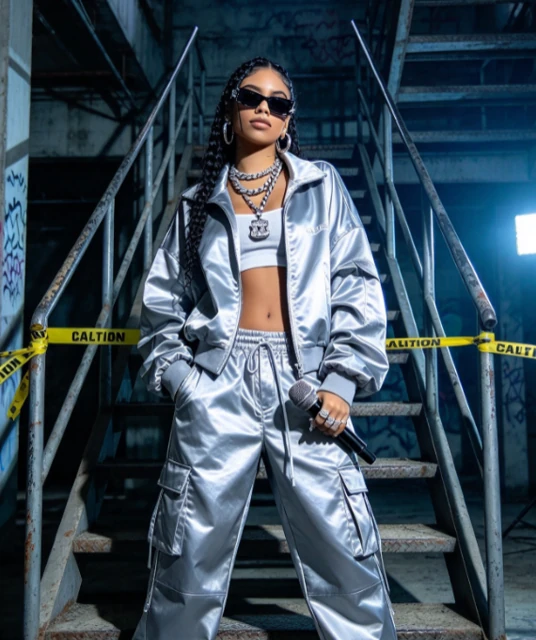
Solo input photo: the stairwell supplies the setting. This one already had a microphone in hand, and the generated clip still follows the same arm movements.
Method 1: use a CapCut template
Install CapCut and sign in first. You can open a template through a TikTok video’s template link or search for its name in CapCut. Using an AI template consumes credits; the required amount appears on the Use AI template button.
Open it from a TikTok video
Some Christian Dior Dance videos display CapCut · Try this template beneath them. That link opens the matching AI template so you can replace the performer with someone from a photo.
- Find a dance video you want to follow that has a template link, then tap CapCut · Try this template beneath it.
- Tap Use template in CapCut on the page that opens to enter CapCut.
- Check the credit amount shown on Use AI template, then tap it to open the character-photo selection step.
- Select the photos for the characters you want to replace, following that template’s photo count and role assignments.
- Tap Next to continue through AI generation, then preview and save the finished video.
Check that the video shows the version of the dance you want. If it has no template link, you can search within CapCut.
Search within CapCut
- Open Template in CapCut and search for Christian Dior or the template name you saw.
- Find the template you want in the search results, open it, and choose to use it.
- CapCut then shows X clip to be replaced. X is the number of media items to replace: if it shows 2, prepare two items.
- Select the photos or videos requested by the template, fill those X slots, and replace the media to continue making the video.
Follow each slot’s instructions when choosing media. For an AI character template, match the photos to the character positions and check the credit amount on Use AI template.
Method 2: use a general AI tool to dance in your photo’s setting
Choose an AI video tool that accepts a movement reference and character photos. Solo needs one character image; the two-photo Duo method needs support for two character references. Assign the video as the movement reference and the photos as the people and setting references.
For this version, keep the setting from your photo. Describe the performers’ positions, steps, and arm movements, and point the background instruction to the photo. The routine lasts about 11 seconds in a steady, full-body portrait shot.
Break the movement into four sections
| Time | Solo movement | Duo movement |
|---|---|---|
| 0–3s | Face the camera and begin small steps in place, bringing the arms from a low position toward the front of the body. | Stand side by side. The left performer brings a hand near the head; the right begins chest-level gestures. |
| 3–6s | Continue stepping, cross the forearms at the chest, and add a brief knee lift. | Bounce and step with the beat, bringing the arms in and out at chest level and adding a knee lift. |
| 6–9s | Alternate chest-level gestures with low arm swings while continuing the small steps. | The left performer raises an arm and leans; the right continues chest-level gestures. Keep the same left and right positions. |
| 9s to the end | Continue the steps and knee lifts, moving the arms with the beat. | Continue stepping, lifting the knees, and moving the upper body while keeping the space between the performers. |
Copyable prompts
After uploading your files, replace @photo1, @photo2, and @video with the attachment labels in your tool. If it offers separate character, movement, and background reference controls, assign the files to those controls before pasting the prompt.
Solo
Person and setting: use the person, clothing, background, and lighting in @photo1.
Movement reference: the Solo dance in @video.
Framing: 9:16 portrait, full body visible, one person centered in the frame, steady camera, one continuous shot lasting about 11 seconds.

0–3 seconds: face the camera and begin small steps in place, bringing the arms from a low position at the sides toward the front of the body.
3–6 seconds: continue stepping, cross the forearms at the chest, and add a brief knee lift.
6–9 seconds: alternate chest-level gestures with low arm swings, keeping the steps in time with the reference.
9 seconds to the end: continue stepping and lifting the knees, moving the arms with the beat.

Keep the person’s appearance, clothing, and setting from @photo1 throughout. Follow the order and timing of the movements in @video.
Duo
People: @photo1 is the performer on the left; @photo2 is the performer on the right. Keep each person’s appearance and clothing from their own photo.
Setting: place both performers in the background from @photo1, using that photo’s surroundings and lighting.
Movement reference: the Duo dance in @video.
Framing: 9:16 portrait, both people fully visible and standing side by side, steady camera, one continuous shot lasting about 11 seconds.

0–3 seconds: the left performer brings a hand near the head; the right makes chest-level gestures. Both begin small steps in place.
3–6 seconds: bounce and step with the beat, bringing the arms in and out at chest level and adding a knee lift.
6–9 seconds: the left performer raises an arm and leans; the right continues chest-level gestures. Keep the same left and right positions.
9 seconds to the end: continue the steps, knee lifts, and upper-body movements while keeping the space between the performers.

Keep both people consistent with their own photos and use the shared setting from @photo1 throughout. Follow the order and timing of the movements in @video.
Use the whole prompt when your tool supports the full dance length. For shorter outputs, split it into 0–6 seconds and 6 seconds to the end. Keep the person, setting, and framing instructions in each request, with only the relevant movement section. Import the results into CapCut or another editor, trim any repeated movement at the join, and place the clips in sequence.
If the tool accepts reference audio, use the audio that goes with the dance. When joining shorter outputs, align them to the beat across the full sequence.
Method 3: follow the dance in the Christian Dior Dance template
The Christian Dior Dance template has both movement references ready to use. Start by choosing your photos.
- Select Solo for one photo or Duo for two.
- Add the photos. For Duo, the first supplies the left performer and shared setting; the second supplies the right performer.
- Choose a resolution. The default is 480p for 550 credits; the other options are below.
- Generate, preview the result, and download the MP4 when it is ready.
Both versions use the same 11-second rates:
| Resolution | Credits |
|---|---|
| 480p | 550 |
| 720p | 1,100 |
| 1080p | 2,750 |
For a silent video, select No song to remove all sound. The credit price stays the same.
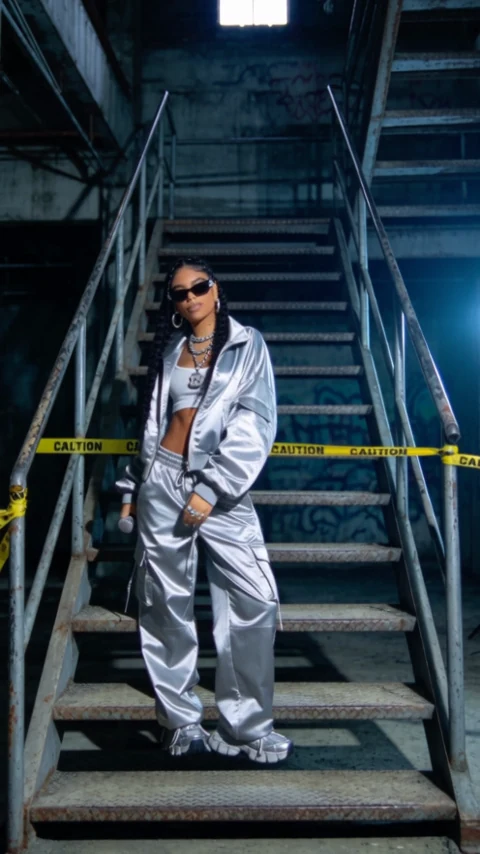
Solo template example, using the setting from the input photo.
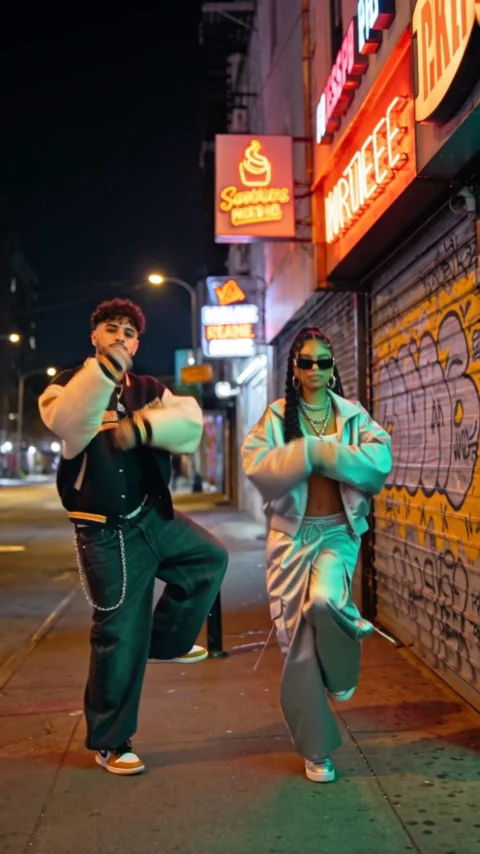
Duo template example: the left performer’s photo supplies the shared setting.
Which route fits?
| Route | Steps | When to choose it | Cost |
|---|---|---|---|
| CapCut AI template | Open a TikTok template link or search by name in CapCut, then replace the requested media and generate. | You have found a template with the routine you want. | Uses the credits shown on Use AI template. |
| General AI video tool | Upload the movement reference and photos, write the prompt, and join shorter clips if needed. | You want to adjust movement sections, framing, or clip length yourself. | Depends on the tool and generation settings. |
| Christian Dior Dance template | Choose Solo or Duo, add photos, and generate. | You want the prepared routine in your photo’s setting. | The 11-second default costs 550 credits at 480p. |
Adjust the people and setting
- The people are on the wrong sides: check the photo order. The first photo maps to the left, and the second maps to the right.
- The background is not the one you want: for Solo, choose a photo with the desired setting. For Duo, check the first photo; the second supplies only the right performer.
- A general AI tool uses the video’s setting: point its background reference to the photo and remove any locations, buildings, or lighting descriptions carried over from the dance clip.
- The wrong routine is selected: Solo and Duo use different movement references. When changing the performer count, change the reference video too.
Questions
What if the two photos have different backgrounds?
Put the photo with the background you want first. The second photo supplies the right performer and can have a different background.
Can I use one group photo for the two Duo inputs?
The Duo template here takes two separate photos, each showing one performer. Prepare a photo of each person, then upload them in left-to-right order.
Sources
- Official Charts: “DIOR – MK FT CHRYSTAL.”
- YouTube, MK: “MK - Dior (Official Lyric Video) ft. Chrystal.”
- CapCut: “Unlock Creativity: CapCut AI Templates for Inspired Video Editing”; CapCut Help: “What Are Credits in CapCut?”
Follow the Christian Dior Dance
Choose Solo or Duo, add your photos, and dance in your own setting.